Free payment tracker for tutors
Tutor payment tracker template
Keep lesson charges, payments and each family's remaining balance in one place, even when payments cover several lessons or arrive in parts.
Free Excel workbook with calculated balances. Prefer a simple log? Download the CSV below.
Download CSV entry logWant to keep these records on your iPhone? See how You Owe Me helps.
By Ievgenii Iablonskyi · Published October 27, 2026
Download the tutor payment tracker
The Excel workbook has an Accounts sheet, an Entries sheet and a separate worked Example. It supports up to 30 payer accounts and 200 charge or payment entries per file, using one currency.
Excel calculates each payer's charges, payments and remaining balance. The CSV records the payer name and currency directly in an empty entry log; it has no formulas, account summary or example sheet. You can import the files into your preferred spreadsheet app; check its formula and dropdown support before relying on the Excel version there.
Set up the workbook in four steps
What each Excel entry includes
- Date
- The date the charge applies or the payment was received.
- Account ID
- The payer account from Accounts, such as A001. Use the uppercase ID exactly as shown so people with similar names do not get mixed together.
- Student / context
- The student or lesson context, especially when one household pays for several students.
- Description
- What the charge or payment relates to.
- Type and amount
- Choose Charge or Payment, then enter a positive amount. Use a separate row for each event.
- Reference / note
- A payment reference or short note that helps you recognize the entry later.
- Check
- A formula checks common missing or invalid inputs. Review any flagged row before using the balances.
You Owe Me does not receive the data you enter in these files. Your spreadsheet app or cloud provider handles any copy you upload or share. A workbook may contain several families' details, so share only the relevant payer's record—not the whole file by default.
Track money owed, not just whether a lesson is paid
A single paid/unpaid checkbox is easy to outgrow. One payment may cover several lessons, and a partial payment may leave only part of the total outstanding. Record the agreed charges and actual payments separately, then calculate the balance for the person responsible for paying.
Who is paying?
Use one account for each payer or household. If a parent pays for two children, use the student/context field to identify the lessons while keeping the family's money balance together.
What was charged?
Add a charge for a lesson or other amount you have actually agreed is payable. A future calendar booking does not become a charge automatically.
What was received?
Add a payment only when you receive it. Keep the date and a useful reference, whether it arrived as cash or a transfer.
Worked example: 200 USD charged, 80 USD paid, 120 USD remaining
Alex Morgan pays tutor Taylor Reed for sessions. The opening balance is zero. Two part-payments arrive before another session is added.
Swipe the table sideways to see the running balance.
| Date | Record | Charge (USD) | Payment (USD) | Balance (USD) |
|---|---|---|---|---|
| October 2, 2026 | Two sessions | 80.00 | — | 80.00 |
| October 6, 2026 | Two sessions | 80.00 | — | 160.00 |
| October 8, 2026 | Payment received | — | 50.00 | 110.00 |
| October 11, 2026 | Payment received | — | 30.00 | 80.00 |
| October 15, 2026 | Another session | 40.00 | — | 120.00 |
The two payments total 80 USD; they are not two extra charges. The later 40 USD session increases the remaining balance from 80 USD to 120 USD. This example tracks a money balance, not the number of prepaid lessons left.
Share a statement that explains the balance
Here is the same five-entry history as a statement created in You Owe Me. It shows what was charged, what was paid and the $120 still due.
This PDF was created in the app; the downloaded tracker does not generate it automatically.
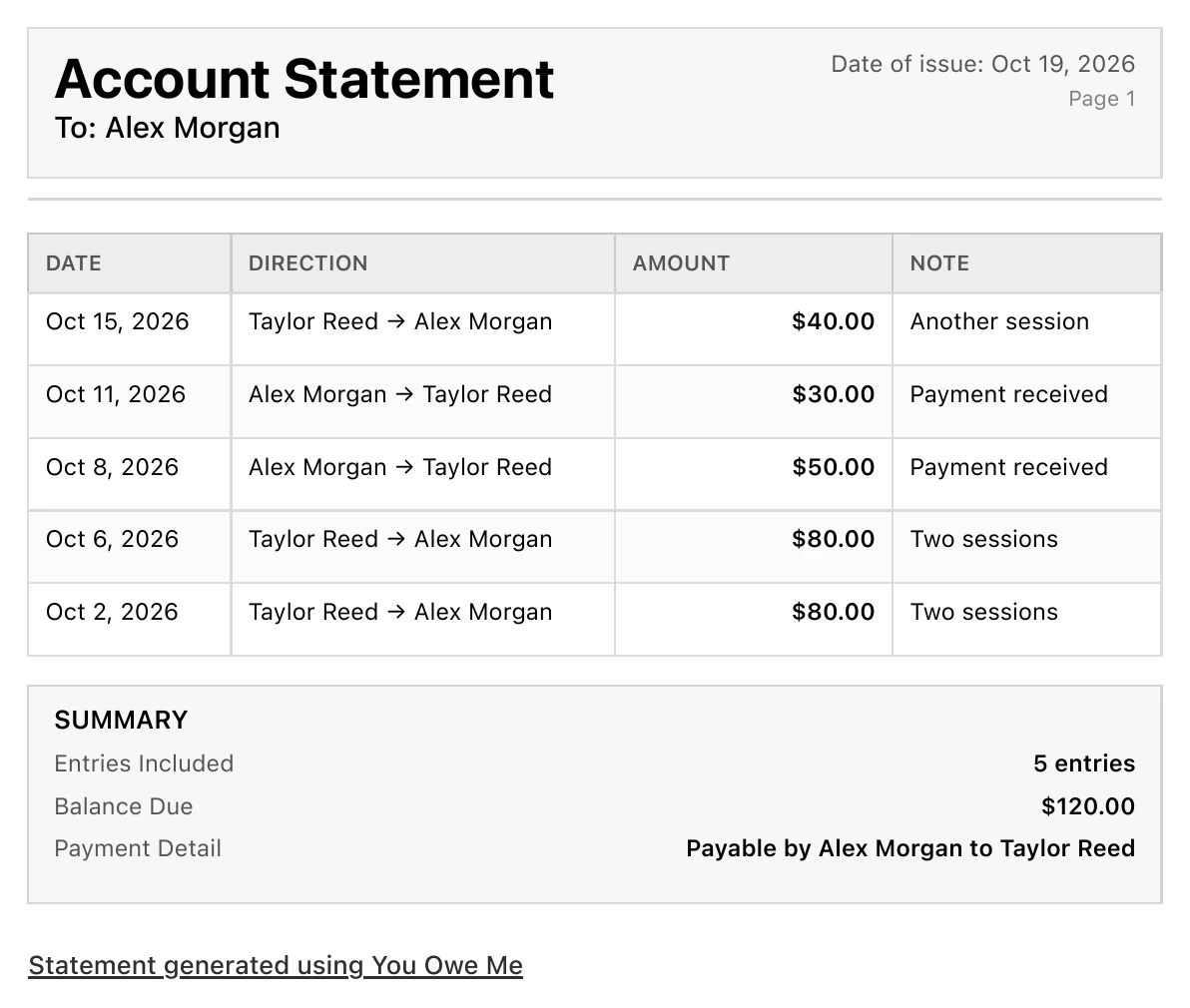
Open the example statement (PDF)
In the app, choose which entries to share and add optional details such as a logo, due date and payment details. Include earlier unpaid charges when they are part of the balance.
The statement is a payment-record summary, not a formal invoice or accounting document.
Keep tutoring balances on your iPhone
If you want to keep updating each family's balance on your iPhone or iPad, You Owe Me brings charges, payments, notes and follow-ups into one record.
One record per payer
Keep each student's or household's charges, received payments and notes together.
A clear balance after part-payments
Record a payment once, even when it covers several lessons. Keep the earlier charges and payments visible.
A statement for the next conversation
Share selected entries as a PDF and use reminders to follow up with the history in front of you.
You Owe Me tracks money records, not schedules, attendance or lesson credits. The workbook does not sync with the app or import as a multi-payer ledger.
Keep each payer's balance up to date
Keep ongoing balances and share a clear payment history. Students and parents do not need the app for you to keep your records.

Scan with your iPhone camera to get You Owe Me.
View app details on the App Store
Set it up in four steps
Add the people responsible for payment
On Accounts, enter each payer or household beside a preset Account ID. Keep those IDs unchanged. Choose one currency for the file. The period label is for your reference; it does not filter entries by date.
Bring forward an earlier balance once
If a payer already owes an agreed amount from an earlier period, enter it as the opening balance. Leave it blank or use zero when nothing is outstanding. Do not also enter the same earlier charges in Entries.
Record charges and received payments
On Entries, use a separate row for each charge or payment. Choose the right Account ID and Type, enter a positive amount, and add enough context to recognize it later. The workbook includes every filled entry row, regardless of row order or the period label.
Review before following up
Fix any Check messages first, then compare the account summary with your actual records. If a balance is negative, review the payment or overpayment; the workbook does not convert it into prepaid lesson credits. Start a fresh file for a new period when needed, carrying the checked closing balance forward once.
The prepared ranges cover 30 accounts and 200 entries. Rows added outside those ranges are not included automatically. Keep a copy of each completed period so you retain the history.
Questions about tracking tutoring payments
What should a tutor payment tracker include?
Record the payer, student or lesson context, date, agreed charge, actual payment and a useful reference. Keep charges and payments separate so partial payments leave a clear remaining balance.
Can one parent pay for more than one student?
Yes. Use one payer account for the household and identify the student in each entry's context field. Use separate accounts when different people are responsible for separate balances.
How do I record a payment covering several lessons?
Record the amount received once as a Payment entry for that payer. Add a note identifying the lessons or period it covers. Do not repeat the full payment on each lesson row.
Can I carry an unpaid balance into the next month?
Yes. Enter the checked closing amount once as the new file's opening balance. Do not also copy the same old charges or payments into the new period. Keep the previous file for the detailed history.
Does the tracker manage prepaid lesson packages?
No. It tracks money amounts, not remaining lesson units or attendance. A negative balance is flagged for review; it is not converted into a lesson-credit total.
Can I use the file in Google Sheets or Apple Numbers?
You can import the Excel or CSV file into another spreadsheet app, but formatting, validation and formulas may behave differently. Check the Excel balances against the worked example after importing. The CSV is an entry log without formulas or summaries.
Does the tracker create invoices or take payments?
No. The workbook records amounts you enter. The app can create payment-record summaries, but it is not a formal invoicing system and does not process payments.
Do students or parents need to install You Owe Me?
No. A tutor can keep their own records in the app without asking the payer to install it. The spreadsheet can also be used independently of the app.