KEEP THE HISTORY. CONTINUE THE RECORD.
Import a loan from Excel, notes or a photo
Bring the repayments you have already recorded into You Owe Me, review the details, then keep the next payment in the same loan record on your iPhone.
Use notes, CSV, Excel, Word or a photo. Review one loan before saving it in You Owe Me.
Prefer to type it yourself? The same starting point also offers manual entry without AI interpretation.
Example loan, ready to continue
- Lent
- $1,300
- Repaid
- $450
- Remaining
- $850
Fictional USD history. Review first, then save one new loan.
Source record → Review → New loan in the app
Try a complete fictional example
These three files describe the same interest-free loan. They contain fictional names and amounts, so you can explore the format without using anyone's private information.
Example data only. These files are not a live loan or a payment schedule.
Swipe the table sideways to see the outstanding balance.
| Date | What happened | Amount | Outstanding |
|---|---|---|---|
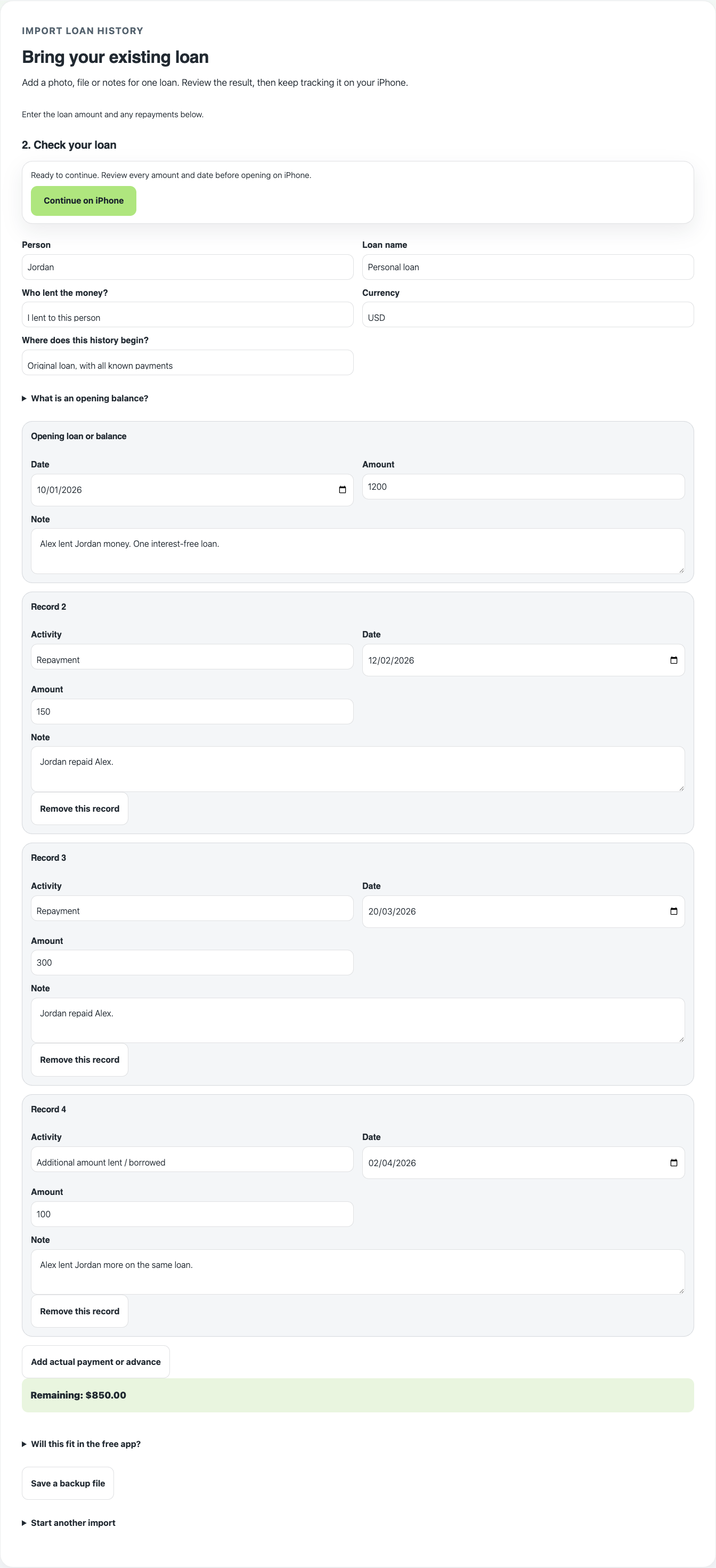
| January 10, 2026 | Alex lends Jordan money | $1,200 lent | $1,200 |
| February 12, 2026 | Jordan makes a repayment | $150 repaid | $1,050 |
| March 20, 2026 | Jordan makes another repayment | $300 repaid | $750 |
| April 2, 2026 | Alex lends Jordan an additional amount | $100 lent | $850 |
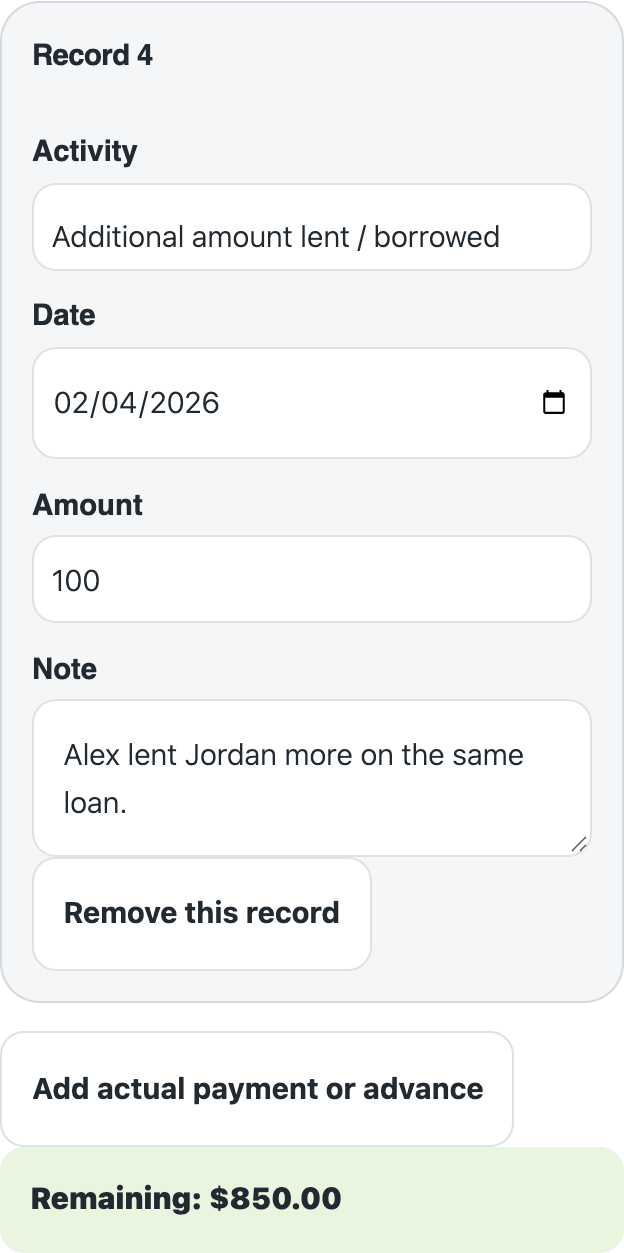
Total lending is $1,300 and actual repayments total $450, leaving $850 outstanding. The $100 advance is a new amount lent, not a repayment.
The same history as plain notes
I am Alex. I lent money to Jordan. This is one interest-free loan in USD.
2026-01-10: I lent Jordan 1200 USD.
2026-02-12: Jordan repaid me 150 USD.
2026-03-20: Jordan repaid me 300 USD.
2026-04-02: I lent Jordan another 100 USD on the same loan.
These are actual events. No future repayment schedule is included.
You can paste these notes into the importer or choose one of the example files. Review the result yourself; the example's expected balance is a check, not a guarantee of automatic interpretation.
Open the loan importerStart with one loan and the events that actually happened
You do not need a perfect spreadsheet. You do need enough detail to tell the original lending, later advances and actual repayments apart.
Who and which direction
Name the other person and say whether you lent the money or borrowed it. Keep different people's loans separate.
Dates, amounts and currency
Include the date and amount of each event and identify the currency. A number such as “100” is not enough if its meaning is unclear.
Lending and repayments
Label money lent separately from money repaid. A further advance increases what is owed; an actual repayment reduces it.
Plans versus history
Keep promised future payments separate from payments that have already happened. A due date or plan is not proof of a repayment.
If the source mixes several loans, make a copy containing just the one you want to bring across. Keep your original file so you can compare it with the review.
Choose the source you already have
Use the format that keeps your history clearest. You do not need to convert everything to Excel first.
Excel or CSV
Use a simple table with one event per row. Include dates, descriptions and amounts, and identify which rows are lending and which are repayments. Excel files must use .xlsx; the older .xls format is not supported.
Pasted notes or a copied table
Paste the relevant text and explain who lent to whom. Keep currency and dates with the amounts. If a copied table loses its columns, add short labels so each amount still makes sense.
A Word document
Use a .docx document containing the relevant loan record. Remove unrelated loans from the copy you submit. PDF and older .doc files are not supported by this document input.
A photo
Use a clear image of the relevant record, with readable dates and amounts. Handwriting can be interpreted, but check the result carefully. Crop out unrelated personal information and make sure the loan direction is clear.
The current browser intake accepts documents up to 2 MB and one image up to 20 MB. Other processing limits can apply; the importer shows any issue it needs you to resolve.

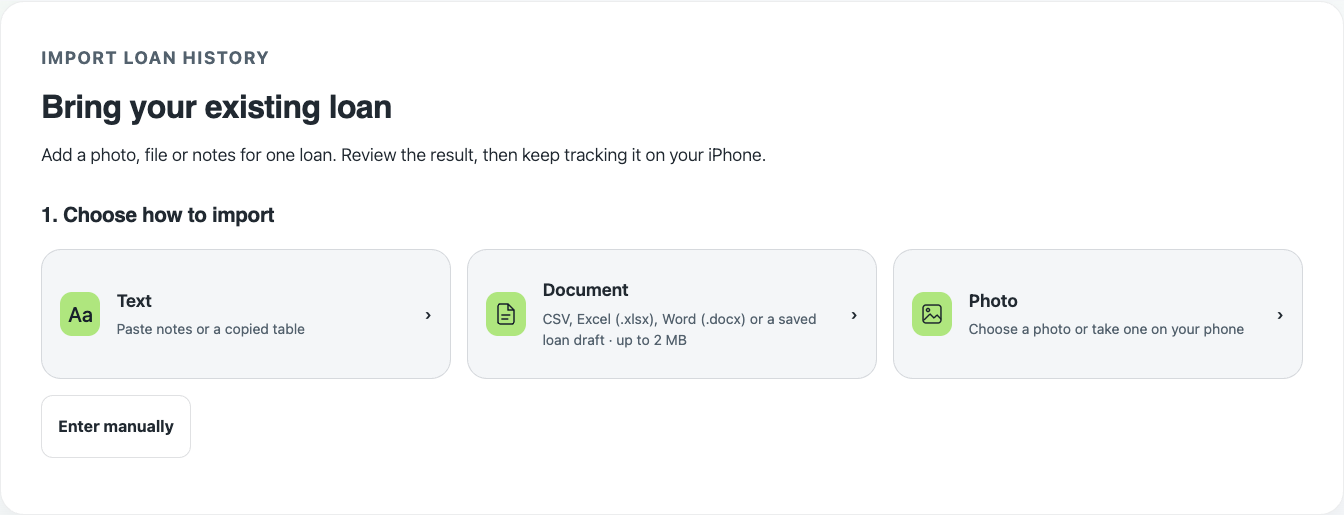
Review the history, then continue on your iPhone
1. Open the importer and add your source
Start from the loan importer, then paste your notes or choose the supported document or photo. Using interpretation sends that source content to You Owe Me's service and OpenAI. If you prefer not to use AI interpretation, choose manual entry instead.
2. Check what the review understood
Compare the result with your source before continuing. Check the person, whether you lent or borrowed, the currency, the original amount and each dated event. Correct anything that was misunderstood and resolve the questions the review identifies.
- The initial loan is counted once.
- Further amounts lent are separate from repayments.
- Every actual repayment appears once, with the right date and amount.
- Promised payments have not been counted as received.
- The resulting balance agrees with the history you can confirm.
For the example above, check for $1,300 lent, $450 repaid and $850 outstanding. If a review differs, inspect the events rather than changing the source to force a particular total.
3. Keep any future plan separate
You can bring across the history without adding a future repayment schedule. Where the review offers a supported interest-free plan, check its amount, frequency and dates separately. Do not turn missing or uncertain terms into an invented agreement.
An import does not reproduce every lender's interest calculation, fees or allocation rules. Keep formal lender statements as your reference for those debts.
4. Use the reviewed loan's continuation link
After review, the import flow can prepare a private link or QR code for that loan. Open it on your iPhone and follow the App Clip or full-app continuation. Finish the review and saving steps in the app; opening a link alone is not the same as saving the loan.
The private transfer expires after 24 hours. Treat its link, QR code and any recovery file as private: someone who has them can read the draft.
5. Record the next repayment in the same loan
Once the new loan has been saved, continue its record in You Owe Me. In our example, a later $100 repayment would reduce the outstanding amount from $850 to $750. Record it when it actually happens; do not import the same history again to add each new payment.
Keep the history together
Review the loan and its linked payments instead of reconstructing the balance from separate notes.
Record what happens next
Add later repayments or further lending to the saved loan as those events occur.
Review the next step
Use the app's loan records and supported planning tools to keep actual payments distinct from future expectations.
See how personal-loan tracking in You Owe Me works after the import.
Keep the next repayment with the history
You Owe Me for iPhone and iPad keeps the loan record useful after the import. If you have already prepared a draft, return to its private continuation to bring it into the app.
Return to the loan importerGet You Owe Me for iPhone and iPad
Download the app for your ongoing loan records.

Scan with your iPhone or iPad
Open in the App Store
This download link and QR do not transfer a loan draft.
If the result does not look right
Pause before continuing. These are checks to make against your source, not reasons to accept an uncertain result.
The balance is too high or too low
Look for a missing or duplicated repayment, a further advance treated as a repayment, or an original loan counted twice. Compare the individual events before the final total.
The direction is reversed
Make it explicit who lent and who borrowed. “Paid Jordan 100” could mean lending, repayment or an unrelated expense without that context.
A date or amount is unclear
Correct the source or resolve the review question using information you can confirm. Do not guess just to finish the import.
The source contains several loans
Separate them into one-loan records and review each import individually. This flow is not a full account or group migration.
You can use manual entry if a source is too ambiguous to interpret reliably. Keep the original record while you check the new loan.
What this import does—and what it does not
A reviewed new loan
This flow creates one new loan after review and saving. It does not merge history into an existing loan, keep a spreadsheet continuously synchronized or automatically import the manual calculator rows on the website.
Source processing and private continuation
Interpretation sends the submitted source to You Owe Me's service and OpenAI. Manual entry avoids that interpretation step. Preparing a private continuation creates a temporary transfer; its 24-hour expiry is separate from provider processing and retention. Read the loan-import privacy details before using personal information.
App capacity and supported terms
Saving and optional planning are subject to the app's current capacity and plan limits. Import is not a promise of unlimited loans, every interest method, payment collection or an automatically verified bank record.
Questions about importing a loan
Can I import a loan from Excel?
Yes. The browser intake accepts .xlsx files, as well as CSV, DOCX, pasted text and a photo. Prepare one loan, identify lending and repayments clearly, and review the interpreted details before saving.
Can I import a handwritten loan record?
You can submit a clear photo, including handwriting. Readability and context affect interpretation, so check the dates, amounts, people and repayment direction in the review. Manual entry is available if the source is unclear.
Do I need a fixed repayment schedule?
No. You can keep the actual history without a future schedule. If you add a supported plan, review it separately from payments that have already happened.
Can I add the imported history to an existing loan?
This import creates one new reviewed loan. It does not merge into an existing loan. After saving, record later payments in that loan rather than importing the same history again.
Will changes in my spreadsheet update the app?
No. Import is a reviewed transfer of one loan's history, not continuous synchronization with Excel, Google Sheets or another file.
Can I transfer the rows from the manual website tracker automatically?
The manual website tracker and the source-import flow are separate. Its calculator rows do not automatically become an imported loan. Use a supported source or enter the history in the import review.
Does scanning the App Store QR transfer my loan?
No. The App Store QR opens the download page. To bring a reviewed draft across, use the private continuation link or QR provided by the importer and finish the app's saving steps.
Can I start directly in the app?
Yes. You can use New loan → Import loan history from Records or the other person's screen. Review the result and the selected storage or profile before saving.
Is my source sent for AI interpretation?
If you use interpretation, the submitted content goes to You Owe Me's service and OpenAI. Manual entry avoids AI interpretation. Private continuation has separate transfer handling; see the loan-import privacy details for the full explanation.
Choose the next step for your loan
Personal loan payment tracker
Use the existing browser tools to work through a loan balance or open the import flow.
Open the trackerTrack a loan between friends or family
Keep the agreement, actual payments and remaining amount clear.
Read the loan-record guidePersonal-loan tracking in the app
See how saved loan records and later repayments fit together in You Owe Me.
Explore loan tracking